Compare
Procedural Videos vs Canva and video template makers
Canva, Animoto, Renderforest and Vyond start from a template: you pick a design and fill it with your text, photos and clips, and some add AI video features too. Procedural Videos starts from your brief: AI plans the video and writes its animation as code, and the engine renders it.
The short answer
Choose Canva and template makers when you have photos or clips to arrange, want to edit a design piece by piece, or need animated characters (Vyond).
Choose Procedural Videos when you want motion graphics made for your message, without picking and filling a template.
Compare
The difference, explained
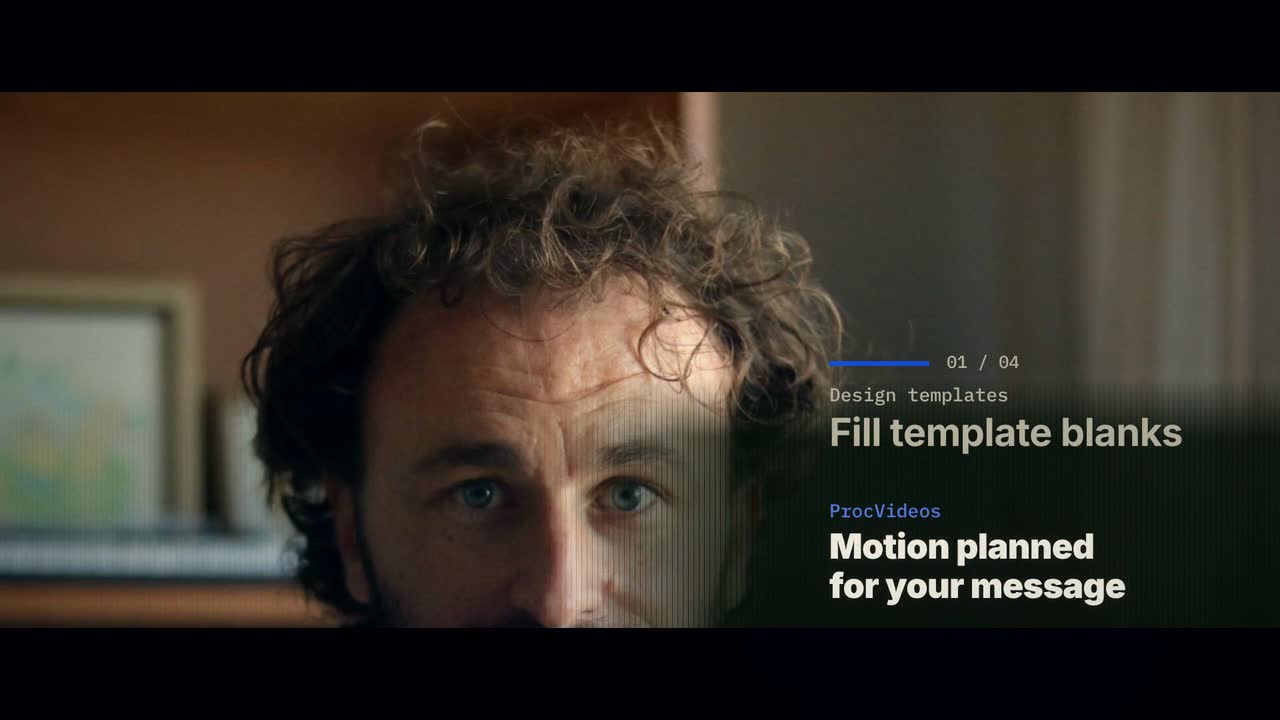
Real output: how this video was made
- Title
- Design templates vs ProcVideos
- Brief
A calm, fair 30-second explainer for small teams who make videos from design templates. It compares design template tools, where you fill a template with your text, photos and clips, with ProcVideos, where AI plans the motion for your message, finds a photo for each scene, and the video is drawn by code. Use this on-screen text and narration exactly as written, one scene each, in this order. Title scene. On screen: Design templates vs ProcVideos Narration: Two calm, fair ways to make a video. 1. On screen: Fill template blanks | Motion planned for your message Narration: Templates give you blanks to fill; ProcVideos plans your motion. 2. On screen: Pick each photo | Photo found for each scene Narration: Pick photos yourself, or have one found per scene. 3. On screen: Edit piece by piece | Regenerate with feedback Narration: Edit piece by piece, or regenerate with your feedback. 4. On screen: Keep your designs. Add ProcVideos clips. Narration: Keep your template designs; add ProcVideos clips for words and offer. End card. On screen: Compare at procvideos.com Narration: Compare at procvideos dot com. Rules. The only brand named anywhere is ProcVideos, written exactly like that, as one word. Name no other product or company on screen or in the narration; speak about the other side only as a category. Never write or say "Procedural Videos", and never use "code" as the name of our side: the product is ProcVideos. Photos. Every scene shows a real stock photograph: a head-and-shoulders portrait of one smiling everyday person facing the camera in bright light, for example "head and shoulders portrait of a smiling woman facing camera, bright office". Never hands only, a silhouette, a person from behind, a dark room or an extreme close-up. The pictured people never speak or endorse anything. No statistics, no prices. Keep it calm and fair: never mock the first side.
- Style
- Photo
- Format
- YouTube 16:9
- Length
- 30 s
- Narration
- English
- Music mood
- Calm
- Made by
- Procedural Videos, from this brief (the preview is a plain cut of its output)
The product form also asks for a short title and one of eight music moods. The AI planner wrote the on-screen lines and the call to action.
01Brief
A calm, fair 30-second explainer for small teams who make videos from design templates.
See the full brief
A calm, fair 30-second explainer for small teams who make videos from design templates. It compares design template tools, where you fill a template with your text, photos and clips, with ProcVideos, where AI plans the motion for your message, finds a photo for each scene, and the video is drawn by code. Use this on-screen text and narration exactly as written, one scene each, in this order. Title scene. On screen: Design templates vs ProcVideos Narration: Two calm, fair ways to make a video. 1. On screen: Fill template blanks | Motion planned for your message Narration: Templates give you blanks to fill; ProcVideos plans your motion. 2. On screen: Pick each photo | Photo found for each scene Narration: Pick photos yourself, or have one found per scene. 3. On screen: Edit piece by piece | Regenerate with feedback Narration: Edit piece by piece, or regenerate with your feedback. 4. On screen: Keep your designs. Add ProcVideos clips. Narration: Keep your template designs; add ProcVideos clips for words and offer. End card. On screen: Compare at procvideos.com Narration: Compare at procvideos dot com. Rules. The only brand named anywhere is ProcVideos, written exactly like that, as one word. Name no other product or company on screen or in the narration; speak about the other side only as a category. Never write or say "Procedural Videos", and never use "code" as the name of our side: the product is ProcVideos. Photos. Every scene shows a real stock photograph: a head-and-shoulders portrait of one smiling everyday person facing the camera in bright light, for example "head and shoulders portrait of a smiling woman facing camera, bright office". Never hands only, a silhouette, a person from behind, a dark room or an extreme close-up. The pictured people never speak or endorse anything. No statistics, no prices. Keep it calm and fair: never mock the first side.
02PlanAI planner
- format
- 16:9
- length
- 30 s
- narration
- Yes
03Drawn by code
- style
- Photo
- colours
#4A7200#1F4FD1#F5F7EF
04Frames1 tick = 1 s ≈ 1 credit
playhead 05.1 / 30 s
- credits
- 30
05MP4
30 s
1080p · 30 fps MP4
- credits
- 30 ≈ $3.00
Side by side
| Topic | Canva and template makers | Procedural Videos |
|---|---|---|
| Starts from | A template from a large library.1,3,4 | Your brief; the AI plans a storyboard for it. |
| Your media | Your photos and clips go into the design (Canva's Magic Video edits them for you).1 | Text only: your photos and clips can't go inside. Add them in an editor. |
| AI video | Canva turns text into AI clips; Renderforest adds licensed models such as Veo and Kling.1,4 | No generated footage: graphics drawn by code, and in the photo style a stock photo for each scene. |
| Characters | Vyond's templates come with characters and props for animated videos.5 | Type, shapes and diagrams. No characters. |
| Library licences | Library content comes with licence terms: in Canva, Pro content is licensed for one design at a time.2 | No library to browse: the video is drawn by code, and the photo style picks a stock photo for each scene, with music and sound effects included. |
Where Procedural Videos is better
Made for the message
The animation is written for your lines, not poured into a preset layout.
Not a template look
Shapes and type drawn in your colours, planned for your lines.
Timed to sound
Music, sound effects and optional narration are timed to the frame.
Where it falls short
No drag-and-drop editing
You can't move one element. You give feedback and regenerate; each generation differs.
None of your media inside
A brief is text only, so your photos and clips can't go in. Add them in an editor.
Fixed lengths
10, 15, 20 or 30 seconds per video.
When to use which
Use Canva and template makers for
- Arranging your photos and clips into a video
- Designs you want to edit element by element
- Animated characters and scenes (Vyond)
Use Procedural Videos for
- Motion graphics written for your message
- Offers, launches and explainers in your colours
- Short social clips with music and sound effects
Use both
Put procedural clips in your Canva video
Upload the MP4 to your editor as a clip and place it between your photos and footage. Your media shows the real thing; the procedural clips carry the message. Every frame is filmed by you or made by Procedural Videos.
- Filmed by you0–8 sYour photo or clipThe team, the venue, or the product.
- Procedural clip8–18 sA 10 s procedural clipThe message, as animated type in your colours.
- Filmed by you18–30 sYour footageThe product in use, or the event itself.
- Procedural clip30–40 sA 10 s end cardThe offer and where to go next.
Cut it together in Canva, or any editor. Procedural Videos makes the clips; it does not edit your footage.
If you add narration, it is an AI voice: follow each platform's AI-content labeling rules.
Questions
Does Procedural Videos use templates?
Each video is planned from your brief and written as code, in one of the product's named styles: build, poster, rush, toon, haunt or type.
Can I use my photos?
Not inside Procedural Videos: a brief is text only. Download the MP4 and combine it with your photos in any editor.
Can I change one element afterwards?
Not directly. Give feedback and regenerate for another take; each generation differs.
Sources
Facts about other products come from their public pages, checked on 29 September 2026. Plans and features change, so check the vendor's page before you decide.
Have a video in mind?
Tell the Attain OS team what you want to make.
Videos Creator is coming to Attain OS. You can create your Attain OS account today.
Canva, Animoto, Renderforest, Vyond, Veo, and Kling are trademarks of their owners. Procedural Videos is not affiliated with, endorsed or sponsored by them.